Uninstall
One command removes the agent, stops it, takes its hooks out of your AI tools and puts your .wakatime.cfg back the way it was. Your editor plugins then send straight to Hackatime or WakaTime again.
-
Run
logbook uninstall:In PowerShell:
Terminal window & "$env:LOCALAPPDATA\Programs\Logbook\logbook.exe" uninstall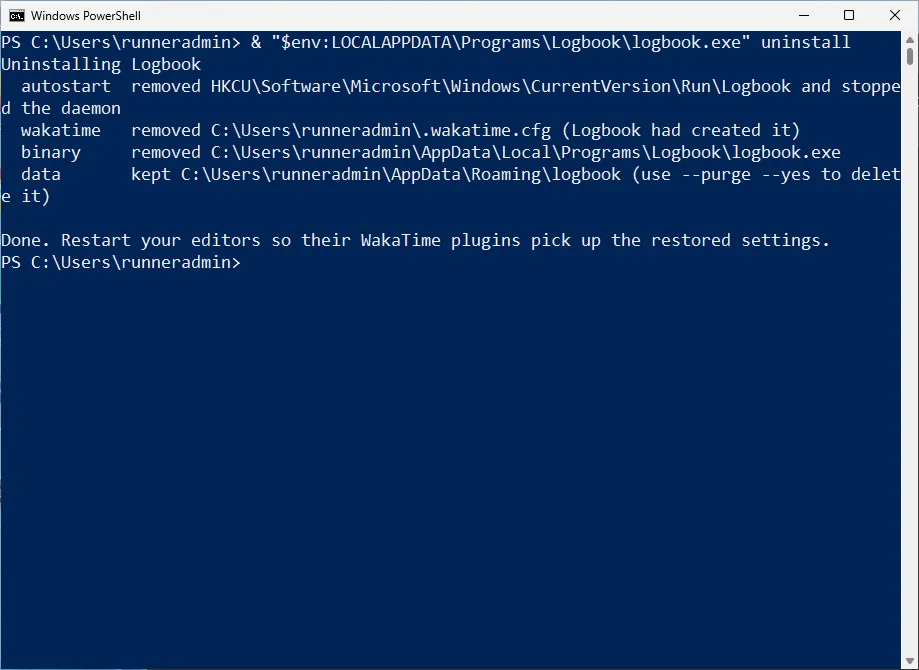
The macOS screenshots below were captured on a GitHub runner after a test workaround for the installer failure. They show the commands after setup; they do not demonstrate a successful unmodified install.
Terminal window "$HOME/Library/Application Support/Logbook/bin/logbook" uninstall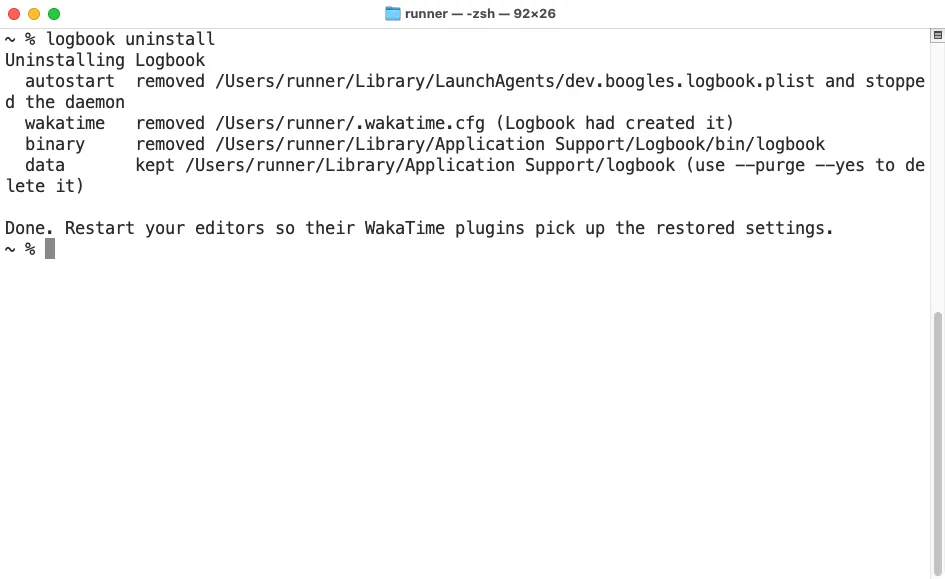
Terminal window ~/.local/bin/logbook uninstall -
Restart your editors so their plugins pick up the restored settings.
Also delete local data
Section titled “Also delete local data”By default the data folder (config, local database, logs) is kept, so a reinstall picks up where you left off. To delete it too, add --purge --yes:
logbook uninstall --purge --yes(On Windows and macOS, use the full path as above.) If any earlier step failed, the data is kept, because a retry needs it. Your original .wakatime.cfg is never lost: if it couldn’t be restored exactly, a copy is saved next to it as .wakatime.cfg.logbook-backup.
| System | Data folder |
|---|---|
| Windows | %AppData%\logbook |
| macOS | ~/Library/Application Support/logbook |
| Linux | ~/.config/logbook |
Your account
Section titled “Your account”Uninstalling doesn’t touch your account or the time already on the website. To stop a computer from sending anything with its key, revoke the key in Settings, under Install keys, and disconnect the computer under Computers.
How to tell it worked
Section titled “How to tell it worked”The output ends with Done., with lines saying the autostart entry, the .wakatime.cfg change and the binary were removed. logbook is no longer found, and http://127.0.0.1:47231/ no longer opens. On Windows, the program file goes away a few seconds after the command ends.